
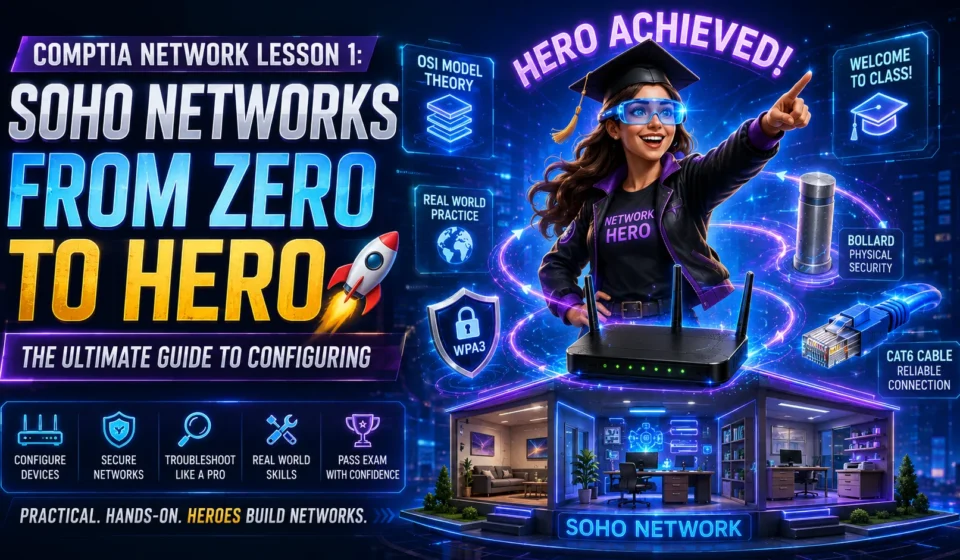
CompTIA Network Lesson 1: SOHO Networks – From Zero to Hero 🚀

Welcome to class! I am thrilled to be your guide today. If you are studying for your CompTIA A+ or just want to understand how the internet actually works in the real world, you are in the right place.
In Lesson 1, we looked at the OSI Model—the theoretical, 7-layer framework of how data moves across a network. But today, in Topic 1B, we are stepping out of the textbook and into the real world. We are going to learn how to build, configure, and secure a SOHO (Small Office / Home Office) Network.
Think of the OSI model as the rules of the road, and the SOHO configuration as actually building the highway and driving the car. Let’s go from 0 to 100!
Level 1: The Basics (0 – 30%) 🏠💼
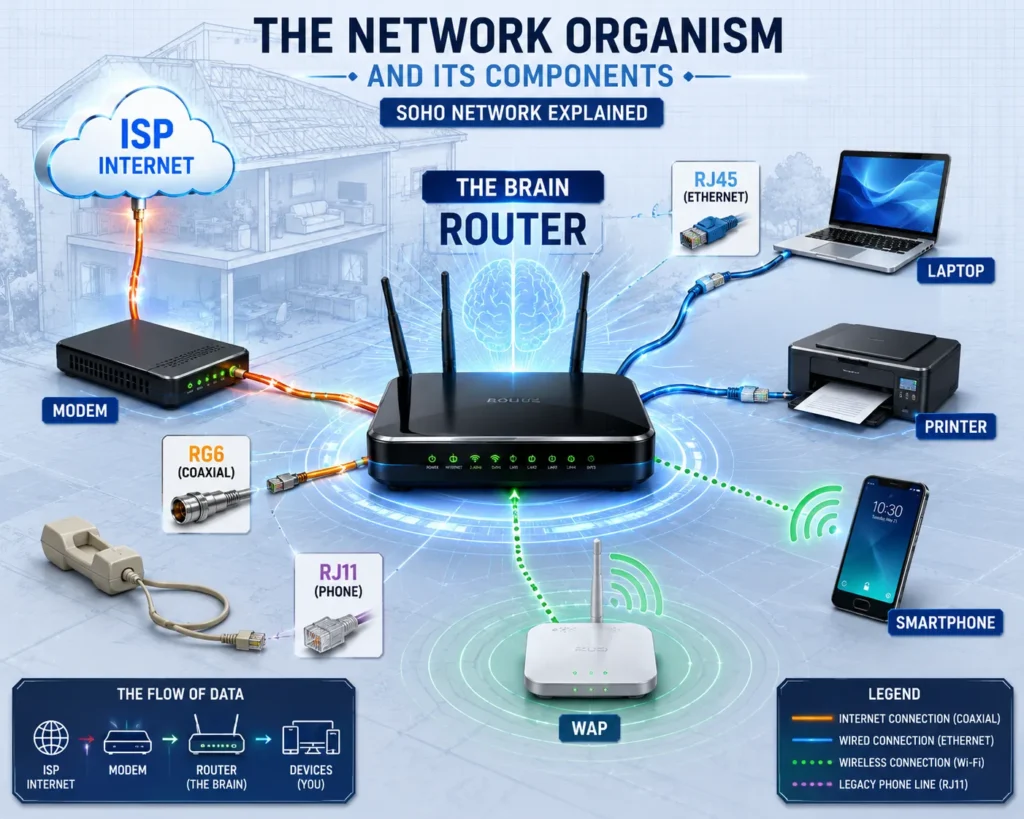
What is a SOHO Network?
A SOHO network is exactly what it sounds like: the networking infrastructure for a Small Office or Home Office. Unlike massive enterprise networks that require dedicated server rooms and teams of engineers, a SOHO network is usually centered on a single, all-in-one device: the wireless router.
In a SOHO environment, the router acts as the “brain.” It connects your local devices (Layer 2 & 3 of the OSI model) to the outside world via your Internet Service Provider (ISP).
The Core Hardware
Before we configure anything, you need to know your gear:
- Modem: Translates the signal from your ISP (coaxial, fiber, or phone line) into digital data.
- Router: Directs traffic. It has a WAN port (Wide Area Network – connects to the modem/ISP) and LAN ports (Local Area Network – connects to your PC, printer, etc.).
- WAP (Wireless Access Point): Broadcasts the Wi-Fi signal. (Note: In most homes, the router and WAP are combined into one physical box).
- Cables:
- RJ45 (Ethernet/Cat6): Used to connect devices to the router.
- RJ11: Old-school telephone cables.
- RG6 (Coaxial): Used for cable internet/TV.
Level 2: Hands-On Setup (30 – 60%) 🛠️
Let’s walk through a real-world scenario based on industry standards.
The Scenario: A homeowner just changed their ISP. They have an Ethernet router connected to an RJ45 wall jack. They need to connect a laptop to the internet wirelessly.
Step 1: Choosing the Right Wi-Fi Standard
The homeowner needs a Wireless Access Point (WAP) that offers speeds up to 600 Mbps and is backward compatible with older 2.4 GHz devices.
- My Tip: If you see a requirement for 600 Mbps and backward compatibility on an exam or in real life, the answer is 802.11n (Wi-Fi 4). It operates on both 2.4 GHz and 5 GHz and is backward compatible with 802.11a/b/g.
- (Modern Context: Today, we also use 802.11ac/Wi-Fi 5 and 802.11ax/Wi-Fi 6, which are vastly faster, but 802.11n is the classic textbook answer for the 600 Mbps benchmark).
Step 2: Physical Installation
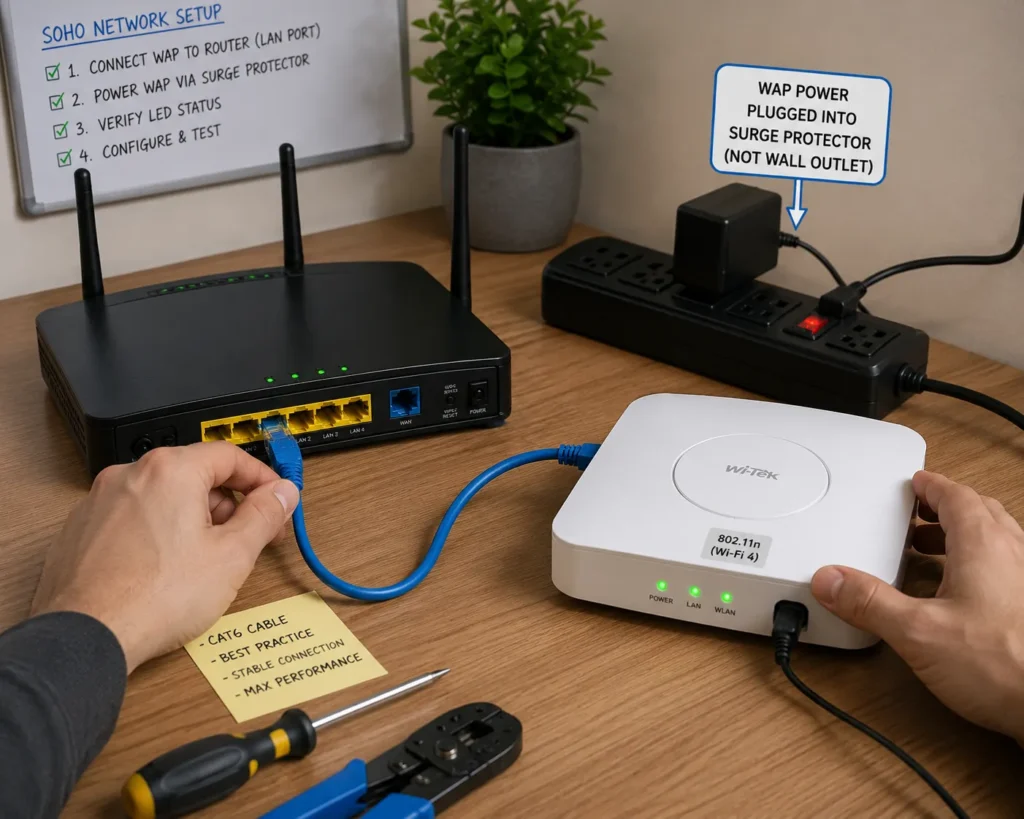
- Power it up: Plug the WAP’s AC-to-DC power adapter into a surge protector (never directly into the wall, to protect against power spikes!).
- Connect to the Router: Take a Cat6 Ethernet cable (RJ45), plug one end into the WAP, and the other into a LAN port on the router.
- Remember: LAN is for local devices; WAN is for the outside internet.
- Verify: Ensure the power light and the Wi-Fi radio lights on the WAP are illuminated.
Step 3: Connecting the Client
- Enable the Adapter: Many laptops have a physical wireless switch or a function key (Fn + F-key) to turn the Wi-Fi radio on.
- Connect to SSID: The SSID (Service Set Identifier) is simply the name of the network (e.g., “Homenet-AC”).
- Automate: Check the box that says “Connect Automatically” so the laptop remembers the network for the future.
Level 3: Securing the Router (60 – 80%) 🔒
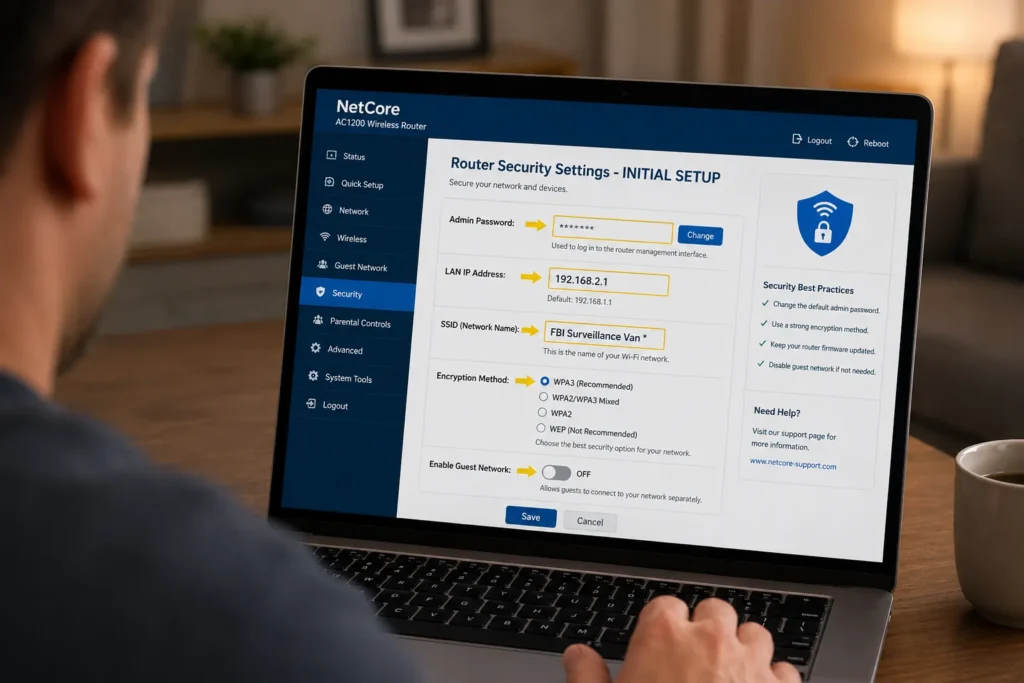
Just plugging in the router isn’t enough. Out of the box, routers are highly vulnerable. If you are setting up a SOHO router, here is your Holy Grail Checklist of the very first things you must do:
1. Change the Default Admin Password 🛑
This is the #1 most important step. Default passwords are usually admin, password, or blank. Hackers use Rainbow Tables (pre-defined lists of common passwords) to guess these in seconds. Change it immediately!
2. Change the Default LAN IP Address
Most routers default to 192.168.0.1 or 192.168.1.1. If you add another device (like a network printer or a switch) that also uses that default IP, you will get an IP Conflict, and both devices will crash. Change the router’s IP to something unique, like 192.168.2.1.
3. Change the SSID
Don’t leave it as “Linksys-5G4A”. Change it to something unique. Pro-tip: Don’t use your name or address (e.g., “John-Smith-House”), as that gives hackers personal info. Be creative! Some people use “FBI Surveillance Van” just for fun.
4. Configure Wireless Encryption
Never leave a network open. You must encrypt the wireless traffic.
- WEP: The oldest. Terribly insecure. Can be cracked in minutes. Never use it.
- WPA: Better, but still vulnerable.
- WPA2: The current industry standard for most devices. Very secure.
- WPA3: The newest and most secure. If your hardware supports it, always choose WPA3.
5. Disable Guest Access (If not needed)
If you don’t have guests, turn off the Guest Network. Every open port or broadcasted SSID is another potential doorway for a hacker.
Level 4: Advanced Threats & Physical Security (80 – 100%) 🥷
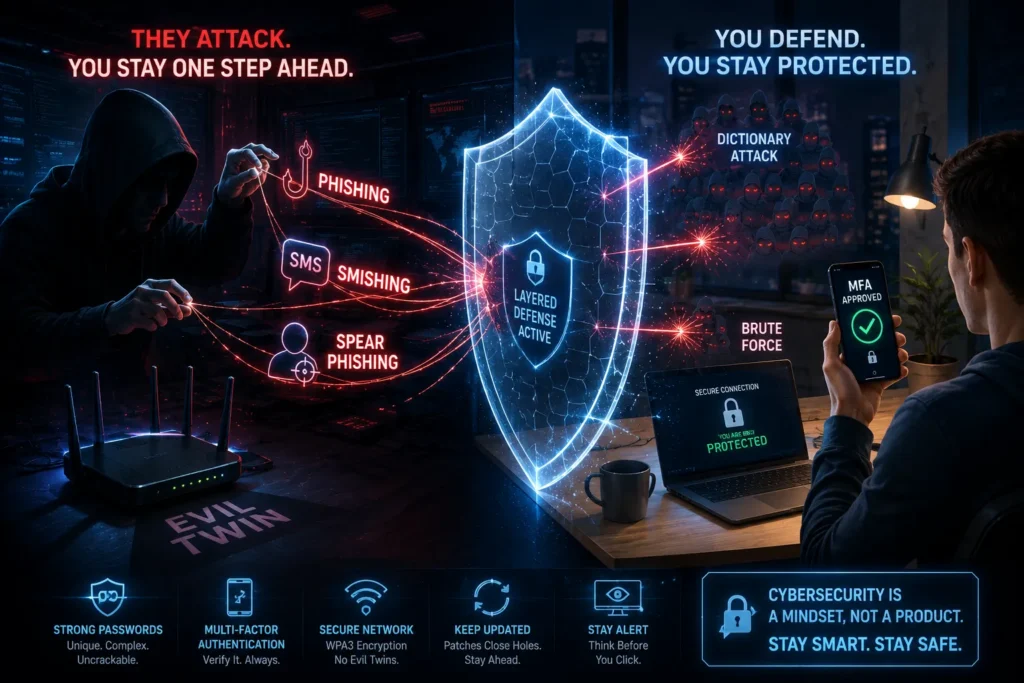
Now we enter the mind of a hacker. To protect a SOHO network, you must understand how it gets attacked.
🎣 Social Engineering & Phishing
Hackers don’t always “break in”; sometimes, you just hand them the keys.
- Phishing: Fraudulent emails trying to steal data.
- Vishing: Phishing over the Voice (phone calls).
- Smishing: Phishing via SMS (text messages).
- Quishing: Phishing via QR codes.
- Spear Phishing: Targeting a specific individual (often using info found via Dumpster Diving).
- Whaling: Targeting a “big fish” (CEO, executives).
- Evil Twin: A hacker sets up a rogue Wi-Fi router with the same SSID as your coffee shop or office. Your phone connects to it automatically, and the hacker intercepts your traffic.
🔑 Password Attacks
- Dictionary Attack: Trying every word in the dictionary. (Defeated by requiring complex passwords with symbols/numbers).
- Brute Force: Trying every single combination of characters (aaaa, aaab, aaac). Defeated by using long passwords and account lockout policies. Hackers often use Botnets (networks of infected computers) to brute-force passwords at lightning speed.
- The Ultimate Defense: MFA (Multi-Factor Authentication). Even if they steal your password, they can’t get in without your phone or fingerprint!
🚧 Physical Security (The Exam Trap!)
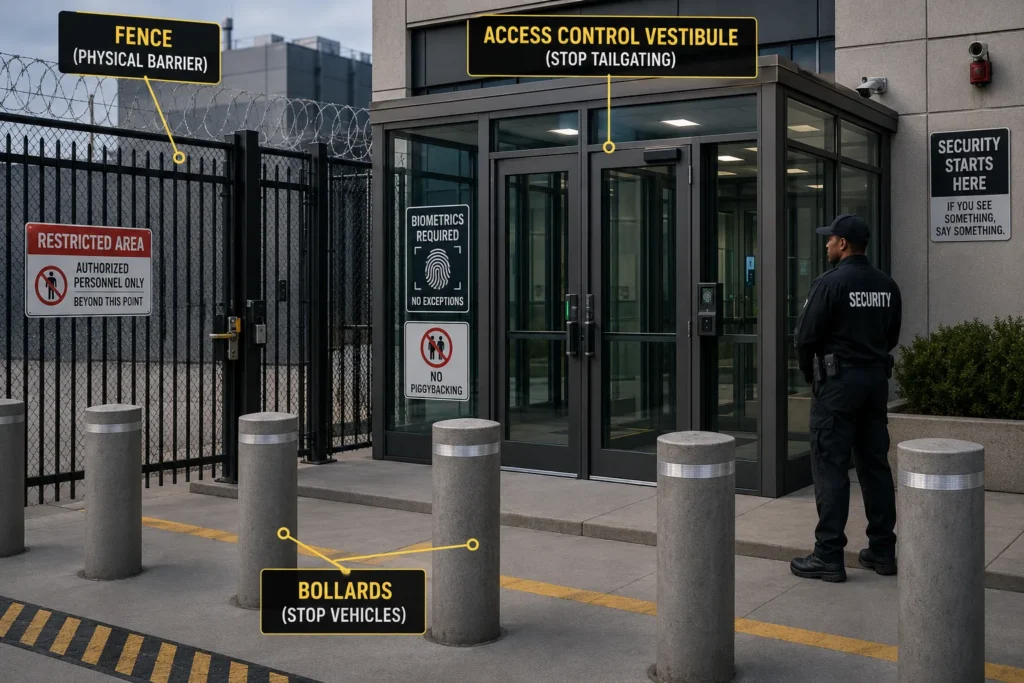
Physical security is heavily tested. You must know the difference between deterring an attacker and physically stopping them.
- Fences & Bollards: Bollards are those short, sturdy concrete/metal posts you see outside buildings. They physically stop vehicles from ramming into the building or generators.
- Mantraps (Access Control Vestibules): A small space with two doors. You badge into the first door, it closes, and then you must badge into the second door. This physically prevents Tailgating (when an unauthorized person slips in right behind you).
- Note: Tailgating is following someone without their consent. Piggybacking is when the authorized person knowingly lets you in (e.g., they feel bad for you carrying a heavy box).
- Magnetometers: Metal detectors.
- Locks: Server cages use key-operated mesh doors. Laptops use Kensington locks (cable locks that loop through a special port).
- Biometrics: Fingerprint or retina scanners.
⚠️ MY GOLDEN RULE FOR EXAMS:
Alarms, Cameras, and Motion Sensors DO NOT physically stop an intruder. They only detect and deter. If a question asks, “Which of the following physically prevents unauthorized entry?” do not choose cameras. Choose a fence, a door, a lock, or a security guard.
Mastering SOHO Network Hardware and Security
Learn the fundamentals of SOHO networking, including routers, switches, wireless access points, network security, and best practices for small office and home office environments.
Summary: Your SOHO Cheat Sheet 📝
- Hardware: Router connects WAN (Internet) to LAN (Local devices). Use Cat6 (RJ45) cables.
- Wi-Fi: 802.11n = 600 Mbps. WPA3 is the most secure encryption.
- Setup: Change default Admin password, change default IP, change SSID, enable WPA2/3.
- Threats: Evil Twins (rogue APs), Phishing (tricking users), Brute Force (guessing passwords).
- Physical: Bollards stop cars. Mantraps stop tailgating. Cameras/Alarms do not physically stop anyone.
Final Thoughts
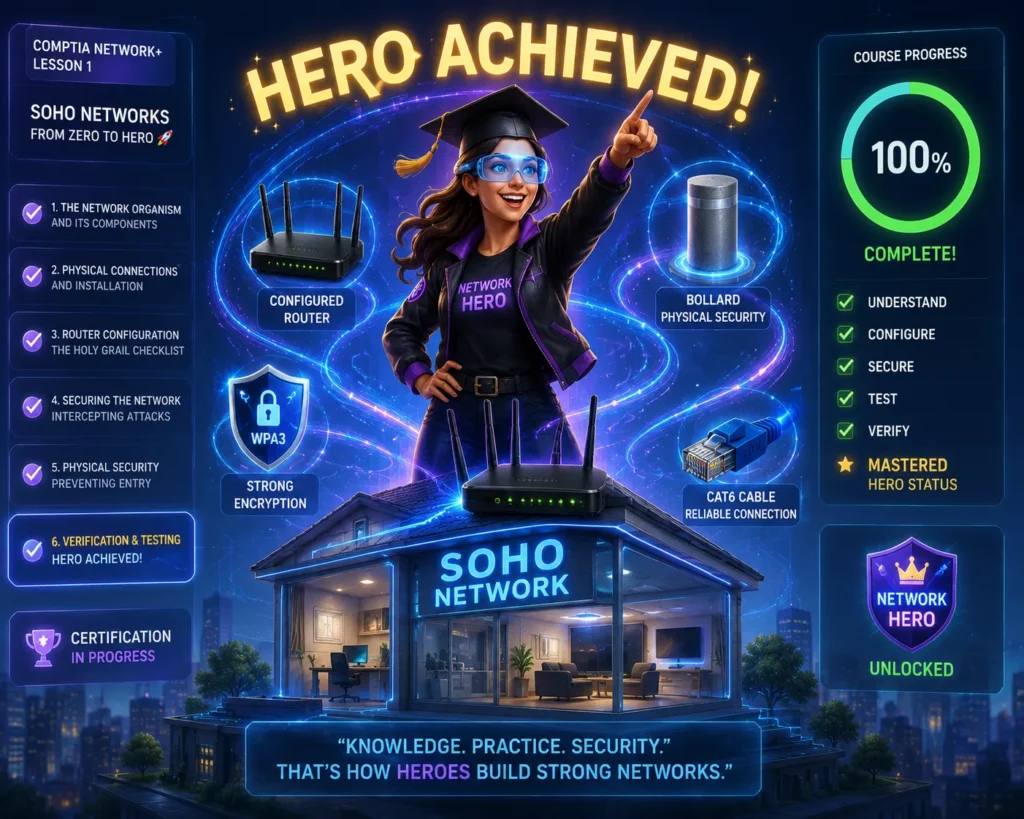
Configuring a SOHO network is all about balance. You need convenience (fast Wi-Fi, easy access), but you must balance it with security (encryption, strong passwords, physical locks).
You’ve just gone from 0 to 100 on SOHO networks! You now understand not just how to plug in the cables, but why we configure them the way we do, and how to defend against the bad guys.
Keep up the great work, and I’ll see you in the next lesson! 🎓💻
Frequently Asked Questions
A SOHO (Small Office/Home Office) network is a networking infrastructure designed for small businesses or home offices. It typically centers around a wireless router that connects local devices to the internet through an Internet Service Provider (ISP), allowing multiple devices like laptops, desktops, tablets, and smartphones to share a single internet connection.
For optimal performance, 802.11n (Wi-Fi 4) offers speeds up to 600 Mbps and is backward compatible with 2.4 GHz devices. However, if your equipment supports it, 802.11ac (Wi-Fi 5) or 802.11ax (Wi-Fi 6) provide even faster speeds and better performance. Always choose the highest standard your devices support while maintaining backward compatibility.
To properly secure your SOHO router, follow these essential steps:
1. Change the default admin password immediately (most important!)
2. Change the default LAN IP address (from 192.168.0.1 or 192.168.1.1)
3. Update the SSID to a unique network name
4. Enable WPA2 or WPA3 encryption (WPA3 is most secure)
5. Disable guest access if not needed
6. Keep firmware updated regularly
1. WEP: Oldest and least secure (avoid completely)
2. WPA: Improved over WEP but still vulnerable
3. WPA2: Current industry standard, very secure
4. WPA3: Newest and most secure (use if available)
WPA3 is the most secure wireless encryption protocol available today. If your devices don’t support WPA3, use WPA2 as your second choice.
An IP conflict occurs when two devices on the same network have the same IP address, causing both to lose connectivity. To prevent this:
* Change your router’s default IP address (e.g., from 192.168.1.1 to 192.168.2.1)
* Adjust your DHCP pool range to exclude static IP addresses
* For example, if a printer uses 192.168.1.50, set your DHCP pool to start at 192.168.1.100
An Evil Twin attack is a type of wireless security threat where a hacker sets up a rogue wireless access point with the same SSID (network name) as a legitimate network. This trick users into connecting to the malicious network instead of the real one, allowing the attacker to intercept data and steal credentials.
* Tailgating: When an unauthorized person follows closely behind an authorized person through a secure door without authentication
* Piggybacking: When an authorized person knowingly or unknowingly gives access to an unauthorized person
Both are physical security threats that can be prevented using mantraps (access control vestibules).
These are all forms of social engineering attacks:
* Phishing: Fraudulent emails trying to steal sensitive information
* Vishing: Phishing attacks conducted via voice/phone calls
* Smishing: Phishing attacks sent via SMS/text messages
* Quishing: Phishing attacks using QR codes that direct users to malicious websites
A brute force attack is a password-cracking method where specialized software tries every possible character combination to guess a password. This attack can be mitigated by:
* Using long, complex passwords (8+ characters with uppercase, lowercase, numbers, and symbols)
* Implementing account lockout policies
* Using Multi-Factor Authentication (MFA)
* Regularly changing passwords
Physical security measures that physically prevent unauthorized access include:
* Fences and bollards (prevent vehicle ramming)
* Mantraps (prevent tailgating)
* Security guards
* Locks (key-operated, electronic, biometric)
* Kensington locks (for laptops)
Important: Alarms, cameras, and motion sensors only detect or deter intruders—they do NOT physically stop them.
A zero-day exploit is a newly discovered security vulnerability that has no patch or fix available yet. Attackers exploit these weaknesses before developers can create updates, making them extremely dangerous. Regular updates and security patches are crucial to protect against known vulnerabilities.
For optimal Wi-Fi coverage in a SOHO environment:
* Place the router in a central location within the building
* Avoid placing it in corners or near walls
* Keep it elevated (not on the floor)
* Position it away from metal objects and appliances that cause interference
* Ensure it’s in a secure location not easily accessible to the public
Multi-Factor Authentication (MFA) requires users to provide two or more verification methods to access an account, such as:
* Something you know (password)
* Something you have (phone, security token)
* Something you are (fingerprint, retina scan)
MFA is critical because even if attackers steal your password, they cannot access your account without the second authentication factor.
Essential cables for SOHO network setup:
* Cat6 Ethernet cable (RJ45): Connects devices to router/switch
* AC-to-DC power adapter: Powers the wireless access point
* Coaxial cable (RG6): For cable internet connections (if applicable)
* Phone cable (RJ11): For DSL connections (if applicable)
Note: Always plug devices into a surge protector to protect against power spikes.
A botnet is a network of compromised computers infected with malware that allows attackers to control them remotely. Botnets are commonly used for:
* Brute force password attacks
* Distributed Denial of Service (DDoS) attacks
* Mass spam and phishing campaigns
* Cryptocurrency mining
Check for router firmware updates monthly and install them immediately when available. Firmware updates often include:
* Security patches for vulnerabilities
* Performance improvements
* New features
* Bug fixes
Enable automatic updates if your router supports this feature.