

From BIOS Beeps to Malware Breaches: A Complete Guide to Fixing Your Windows PC

Have you ever turned on your computer only to be greeted by a loud beeping sound, a black screen, or worse—a virus that won’t go away? Technical glitches can be a nightmare, especially when they mess with your internet connection.
In this guide, we’ll walk you through real-world solutions for the most common (and annoying) Windows problems, from hardware fixes to deep-cleaning a stubborn PowerShell Trojan.
Table of contents
1. The “Beep” of Death: Fixing BIOS and CMOS Issues
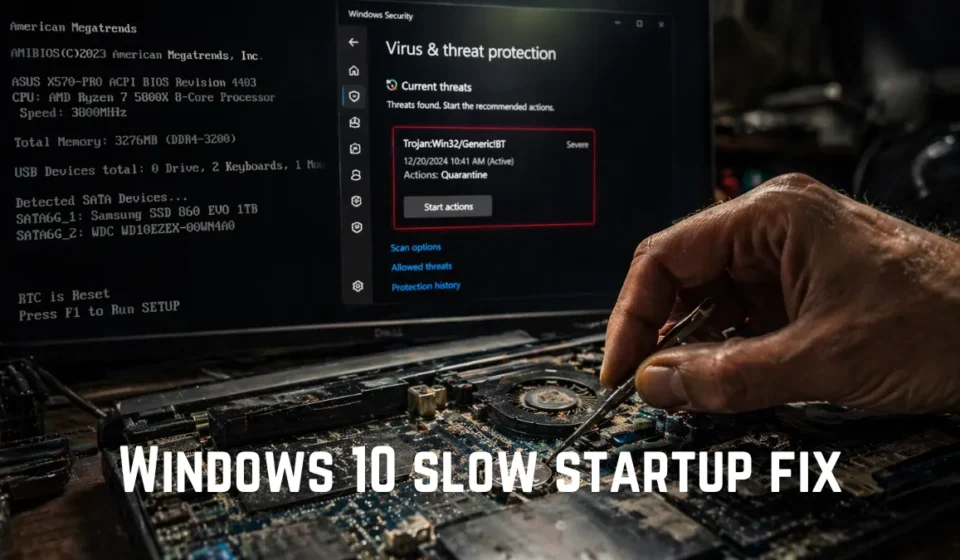
If your PC shows an “RTC is Reset” error or asks you to press F1 every time it starts, you likely have a hardware “heart” problem.
How to Fix the “RTC Reset” Error:
- The Culprit: The CMOS battery (a small silver coin-shaped battery on your motherboard) is dead. It’s responsible for remembering your PC’s time and settings.
- The Fix: Replace the CR2032 battery.
- The Next Step: After replacing it, enter the BIOS menu (usually by tapping F2 or Del at startup), go to the Main tab, and correct the System Date and Time. Don’t forget to press F10 to save!
2. Speed Up Your Windows Startup
Is your taskbar taking forever to load icons? This usually happens because your Hard Disk (HDD) is overwhelmed during startup.
Quick Speed-Up Tips:
- Disable Startup Apps: Open Task Manager (Ctrl + Shift + Esc), go to the Startup tab, and disable apps like OneDrive, Telegram, or Skype.
- Turn Off Transparency: Go to Settings > Personalization > Colors and toggle off Transparency effects. It gives your PC a small but noticeable “breathing room.”
3. The Deep Clean: Removing a PowerShell Trojan

Some viruses are “fileless,” meaning they hide inside your computer’s own tools like PowerShell. If your Antivirus keeps flagging a “Severe Trojan” but can’t kill it, it’s likely hidden in a Scheduled Task.
Step-by-Step Malware Removal:
- Use Safe Mode: Boot your PC into Safe Mode to prevent the virus from running.
- Use Microsoft Autoruns: This is a pro tool. Download it, run it as Administrator, and look for entries highlighted in purple or red.
- Find the “Intel” Imposter: Hackers often use names
IntelResourcesUpdaterV2to trick you. If you see a task running a long, weird PowerShell command (-EncodedCommand), Delete it immediately. - Clean the Registry: Check
HKEY_LOCAL_MACHINE\SOFTWARE\Microsoft\Windows\CurrentVersion\Runfor any suspicious scripts.
4. Why is My Internet Not Working After Removing a Virus?
It’s common to see a “No Internet” message even if your Wi-Fi is connected after a malware attack. This happens because the virus changed your Proxy settings.
How to quickly fix the internet after malware removal?
- Uncheck Proxy settings in inetcpl.cpl.
- Run
netsh winsock resetin Command Prompt. - Flush DNS with
ipconfig /flushdns. - Disable IPv6 in Network Adapter properties.
- Restart your PC.
How to quickly fix using third-party software
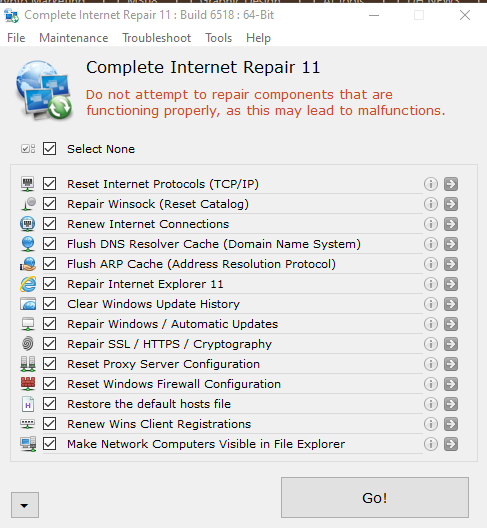
If you can download a small software called “Complete Internet Repair” (Portable) from another computer or phone and put it on your laptop with a pen, you can solve this problem in a second.
When you put all the tick marks in it and press the Go button, it will automatically fix all the hidden settings changed by the virus.
Another little test:
Have you tried connecting your phone to your laptop via USB cable (USB Tethering) and giving it internet? If not only Wi-Fi but also the internet provided by USB does not work, it is 100% a block within the Windows system.
How to Restore Your Connection:
- Check Proxy Settings: Open Internet Options (search for
inetcpl.cpl), go to the Connections tab > LAN Settings, and make sure “Use a proxy server” is UNCHECKED. - The Magic CMD Reset: Open Command Prompt as Administrator and type these commands:
netsh winsock resetnetsh int ip resetipconfig /flushdns
- Disable IPv6: If you can “ping” Google but websites won’t open, try disabling IPv6 in your Network Adapter properties.
5. Frequently Asked Questions
Usually, this is a BIOS error related to the CMOS battery or a hardware change. Ensure your system clock is correct and your RAM is properly seated.
It is a type of malware that uses Windows’ own PowerShell tool to execute malicious code. It often hides in the Task Scheduler to restart itself every time you log in.
This is often due to an incorrect Proxy server setting or a corrupted DNS cache left behind by malware. Resetting your network stack using the netsh The command usually fixes it.
Only if you recognize them as suspicious. If you see tasks with weird names or those using powershell.exe With encrypted strings, they are likely malicious.
Pro Tip: Always keep a portable version of Microsoft Autoruns and Complete Internet Repair on a USB drive. They are lifesavers when your PC is offline and under attack!